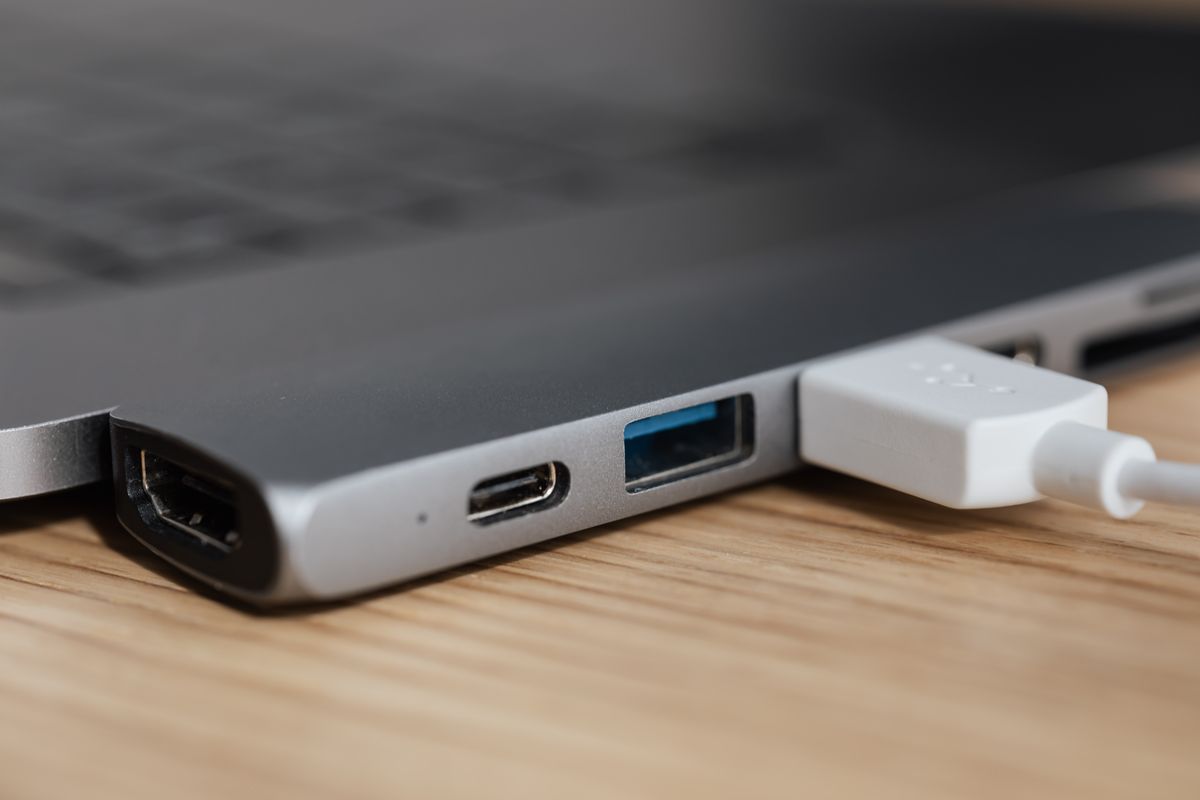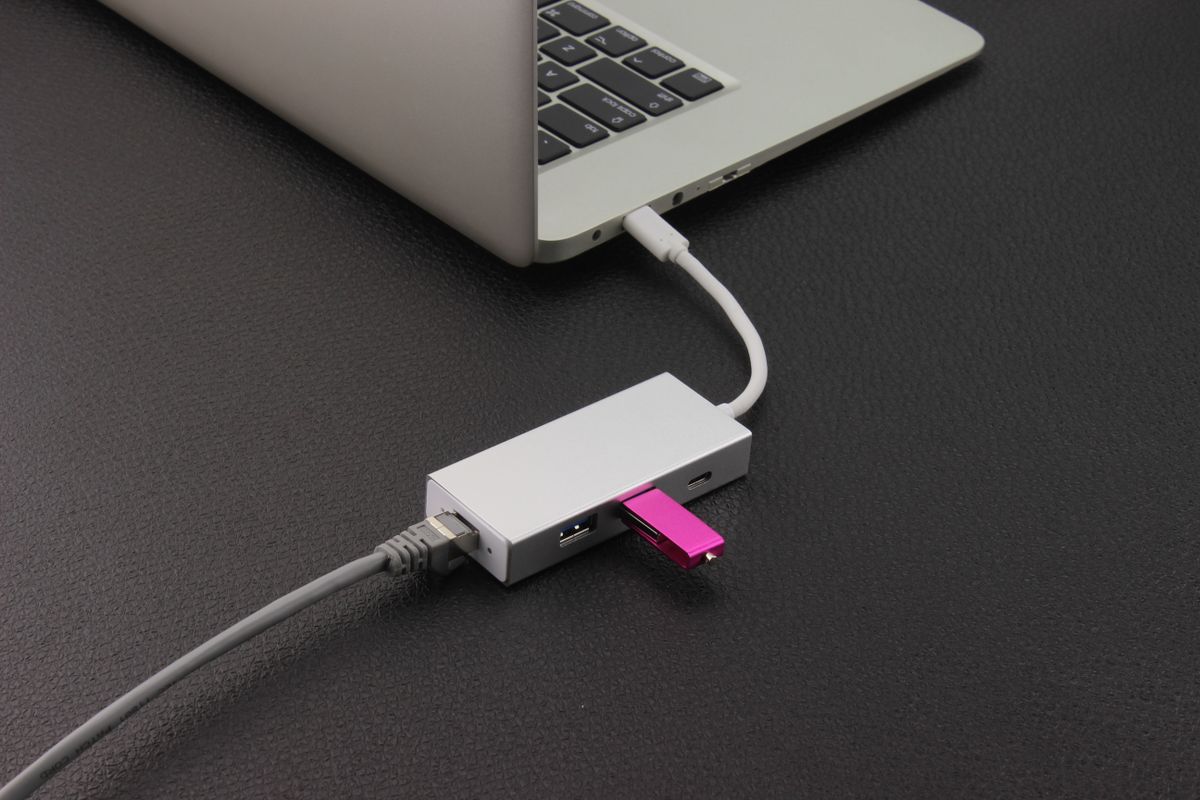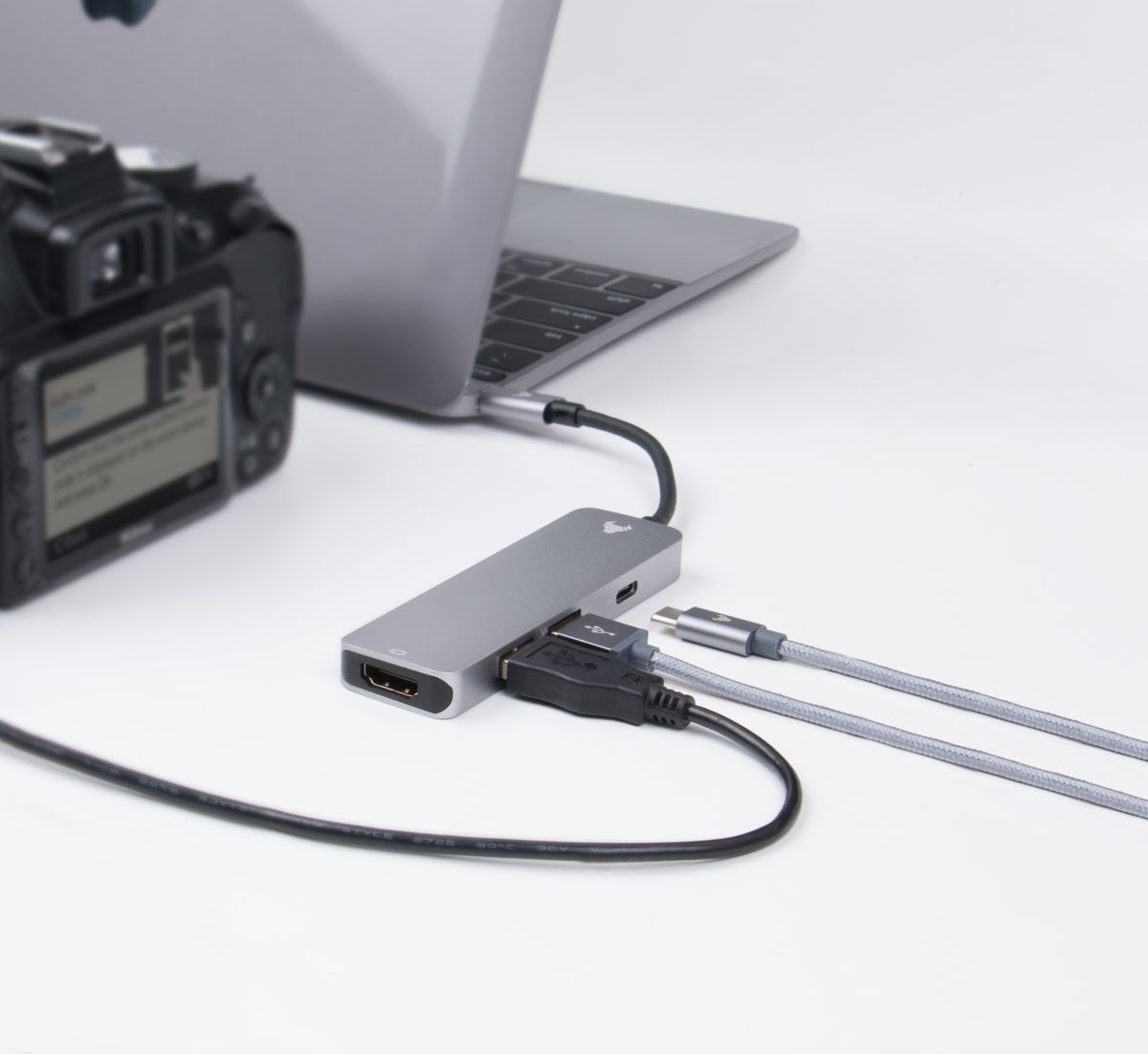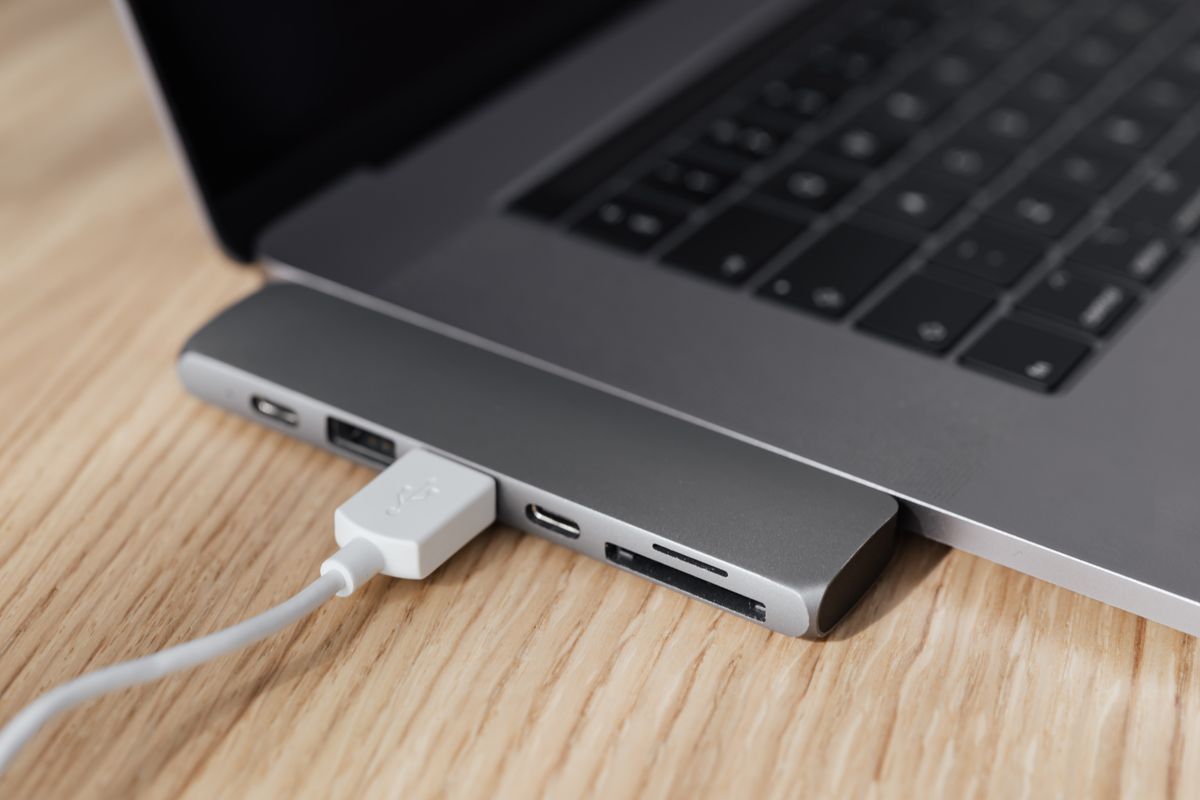
A dock can make arriving at a desk pleasantly simple: connect one cable and the usual equipment is ready. Choosing one by its number of sockets, though, can leave several of those sockets unable to deliver what you expected. The starting point is the laptop's exact model and the way its ports work.
Write down the devices you want to use at the same time. Include each monitor's resolution and intended refresh rate, a wired network connection if needed, any external drives, and the keyboard or mouse receiver. A list of simultaneous uses is more revealing than a list of things you occasionally own.
Check the display arrangement explicitly
Two monitor connectors on the back of a dock do not guarantee two independent extended displays on every computer. Support can depend on the laptop, operating system, dock technology and the combination of sockets used. A seller's compatibility table should describe your arrangement, not merely say that the dock works with Windows or Mac.
Some docks use a software-based display system. Others rely on display signals supplied directly by the computer. Those approaches have different driver requirements and limitations. If the laptop belongs to an employer, find out whether the necessary software can be installed before ordering. A dock that needs an unavailable driver is not a useful shortcut.
Separate charging input from power delivered
A dock's power adapter rating is not always the amount available to the laptop. Some power is used by the dock and connected accessories. Look for the stated host charging output and compare it with the computer manufacturer's requirements. A machine may accept lower-power charging yet lose battery charge during demanding work. That is a different result from being unable to connect at all.
Check whether the power adapter and host cable are included. A compact travel dock sometimes expects you to provide the laptop charger. That may suit occasional use, but it undermines the convenience of leaving everything connected if you still have to remove the charger each morning.
Picture the cable route
Port placement changes the everyday experience. A front socket is convenient for a removable drive; a permanent display cable may be better at the back. The host cable must reach the laptop without suspending the dock from its connector. Leave the dock's ventilation openings clear, and make sure its power brick has a place to sit.
Before committing the setup, connect the intended equipment together and test ordinary transitions: waking the laptop, disconnecting it, returning it to the desk and joining a call. Keep packaging until those checks are complete within the seller's return terms. A dock should simplify the routine you already have, not require a new routine to work around it.