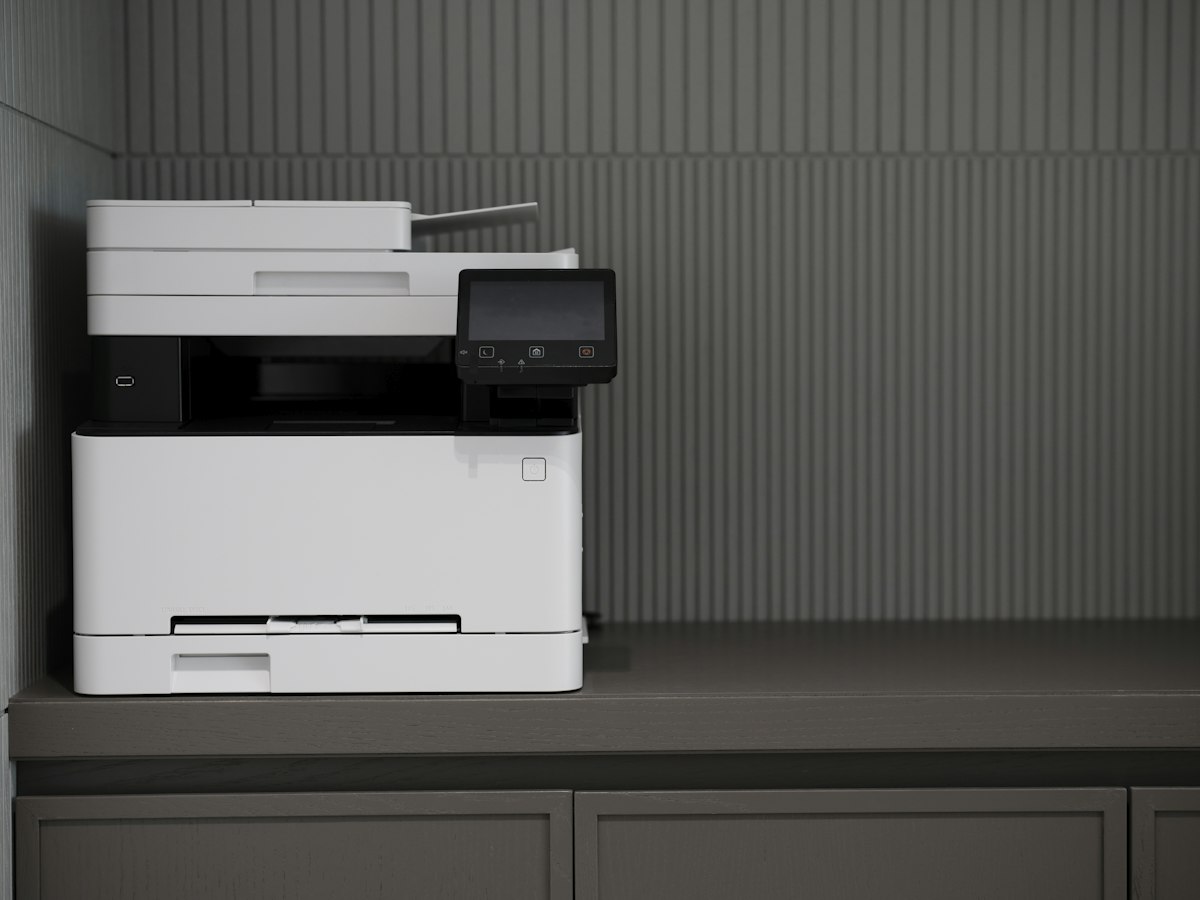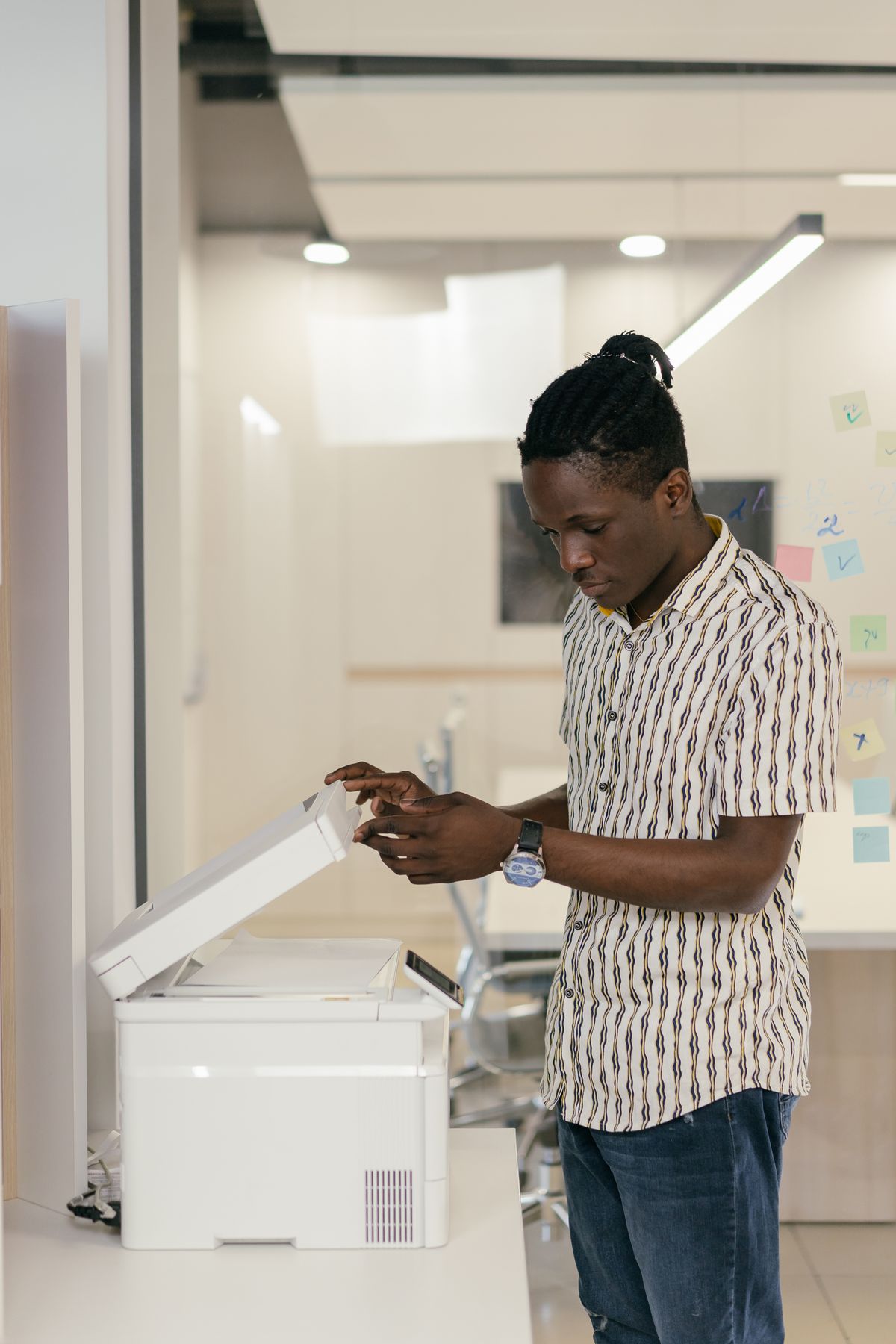
A shared printer works best when everyone can find the same machine, choose the right settings and collect their pages without asking whose computer must be switched on. Connecting the printer directly to a supported local network can simplify that routine. The details still need to fit the room, the computers and the sensitivity of the documents.
Decide how the machine joins the network
Ethernet can be convenient where an appropriate network connection is available beside the printer. Wi-Fi offers more freedom of placement, but the chosen location still needs reliable coverage and compatibility with the network's security settings. Check the exact model's supported connections rather than assuming that every wireless printer works with every band or configuration.
A direct wireless connection offered by the printer is not necessarily the same as joining the office network. It can create a separate route with different discovery and internet-access behavior. Read the manufacturer's setup instructions and choose the method deliberately. Installing multiple duplicate printer entries while trying every method can make later troubleshooting confusing.
Make one documented setup
Use the manufacturer's official support page to confirm current drivers or supported built-in printing methods for each operating system. Give the printer a recognizable name and keep a short note of the model and connection method. Avoid a name that exposes a person's private information. If network addressing needs adjustment, use the method supported by the router and printer rather than assigning an address at random.
Set ordinary defaults carefully: paper size, duplex behavior and color mode should match the routine work. Test from each type of computer that will use the machine. A successful print from the first laptop does not confirm scanning, mobile printing or access from a different network segment. Separate a guest network from the question of who is authorized to use the printer.
Keep shared output and administration under control
Change default administrative credentials when the device provides them, maintain supported firmware and restrict configuration access to the people who need it. Do not expose the printer's administration interface directly to the public internet as a shortcut to remote printing. Use an approved remote-access arrangement if that capability is genuinely required.
Sensitive pages should not sit unattended in a shared output tray. If the model supports a release code or another held-print function, check that everyone understands its use. Otherwise arrange to collect private documents immediately or use a more suitable workflow. Scanning destinations and saved address books deserve similar attention because they can send information to the wrong place if left outdated.
Before declaring the setup finished, restart the relevant devices in their normal sequence and confirm that printing still works. Keep the official manual and setup notes somewhere accessible. A small amount of documentation prevents the next person from rebuilding a working configuration simply because nobody remembers how it was connected.