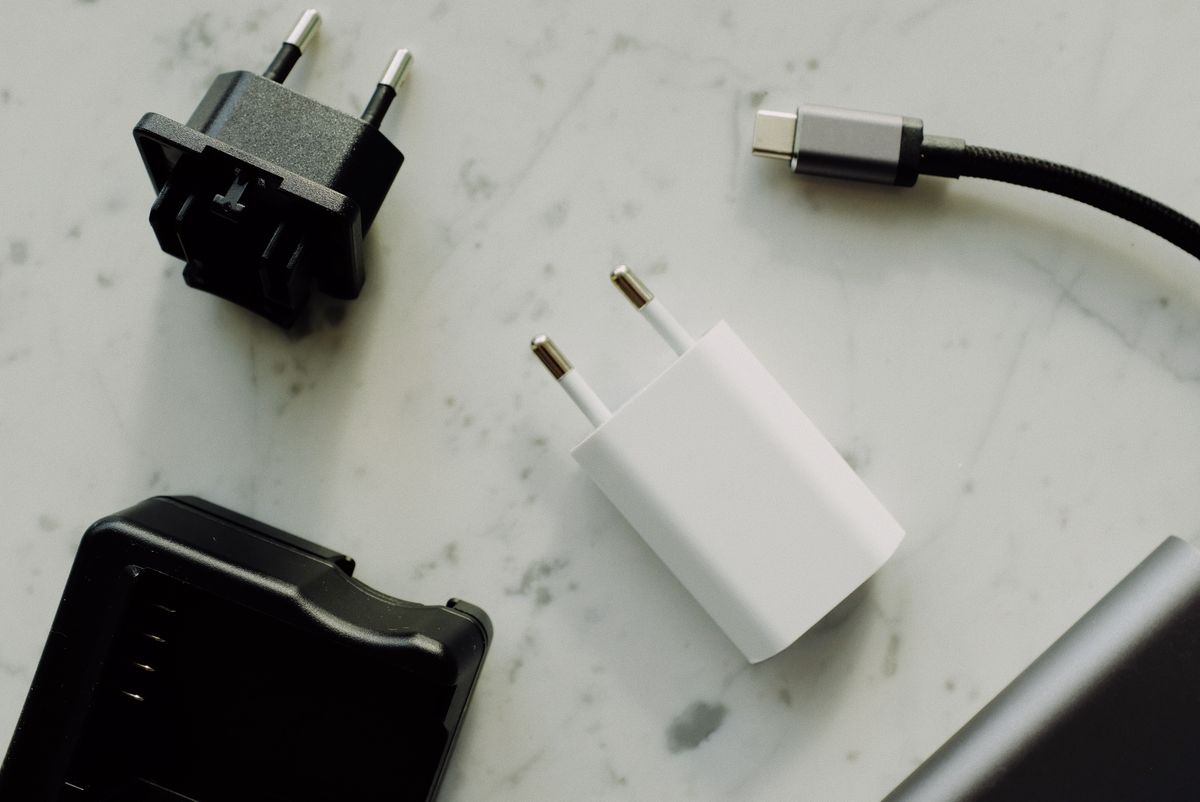
An external drive can move a large project between computers without waiting for an upload. It can also become a single point of failure if the project is moved onto it and the original is immediately deleted. Decide whether the drive is a transport device, a working drive or part of a backup arrangement before choosing its capacity and routine.
For transport, the simplest approach is usually to copy the required files, verify them at the destination and retain the original until the handoff is complete. A drive carried in a bag should not become the only home of important work merely because it has plenty of space.
Match the drive to both computers
Check the ports on the sending and receiving machines. The connection speed depends on the drive, cable, port and any hub between them. A fast drive connected through a slower path will not achieve its advertised maximum. Everyday transfer speed also varies with the number and size of files, so a single large video and thousands of tiny files can behave differently.
An SSD has no spinning disk mechanism and can be convenient for frequent travel. A portable hard drive may offer more capacity for the price, but should be protected from impacts and handled according to its instructions, particularly while operating. Neither type should be treated as indestructible. Keep the cable supported so the drive is not left hanging from a laptop port.
File systems are part of compatibility
The drive's format determines how different systems can read and write it. A format suited to one computer may not be writable by another without additional software. Check the operating systems and the software permitted on both machines before changing anything.
Formatting is destructive: it removes the existing file-system structure and can make existing files inaccessible. Do not reformat a drive containing the only copy of anything. Back up its contents first and confirm that the copy opens. If the drive is supplied preformatted, test a non-sensitive sample file on both computers before loading a whole project.
Some file systems have limits that matter for large individual files. Others offer features tied to a particular operating system. Rather than choosing by a familiar name, consult the computer and drive documentation for the intended cross-platform use. An approved workplace transfer process may also specify encryption or a particular format.
Carry the information responsibly
Portable storage is easy to lose. For confidential work, use the organization's approved encryption and transfer process, and confirm that the recipient can access it. A password stored in a text file on the same unprotected drive does not solve the problem. Keep recovery information through an approved separate method.
Give the transfer folder a clear project name and date, and include only the files needed. That is often more useful than copying an entire working directory with obsolete exports and unrelated documents. Where project software depends on linked assets, use its supported packaging or collection function so the destination receives the necessary files.
Finish the transfer deliberately
Wait for copying to complete, then open representative files from the destination. For an important handoff, use the verification method appropriate to the project rather than relying only on the disappearance of a progress bar. Follow the operating system's safe-removal procedure before unplugging, and investigate a drive-in-use message instead of pulling the cable during activity.
Once the transfer is confirmed, store the drive where the connector and cable are protected. Decide when temporary copies should be removed according to the project's retention requirements. A repeatable copy, verify and safely disconnect routine contributes more to dependable transfers than buying the fastest drive on the shelf.